

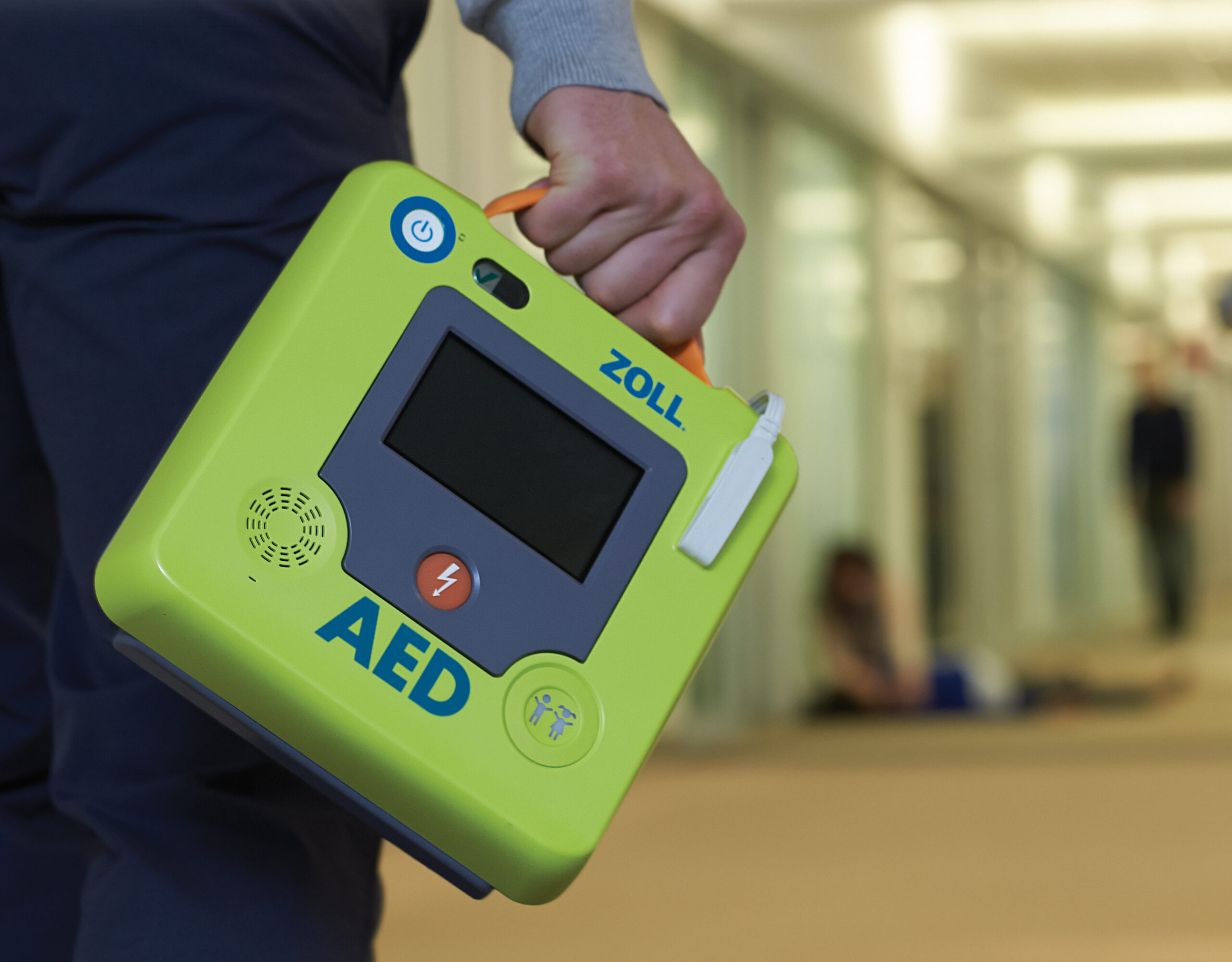
- AEDs
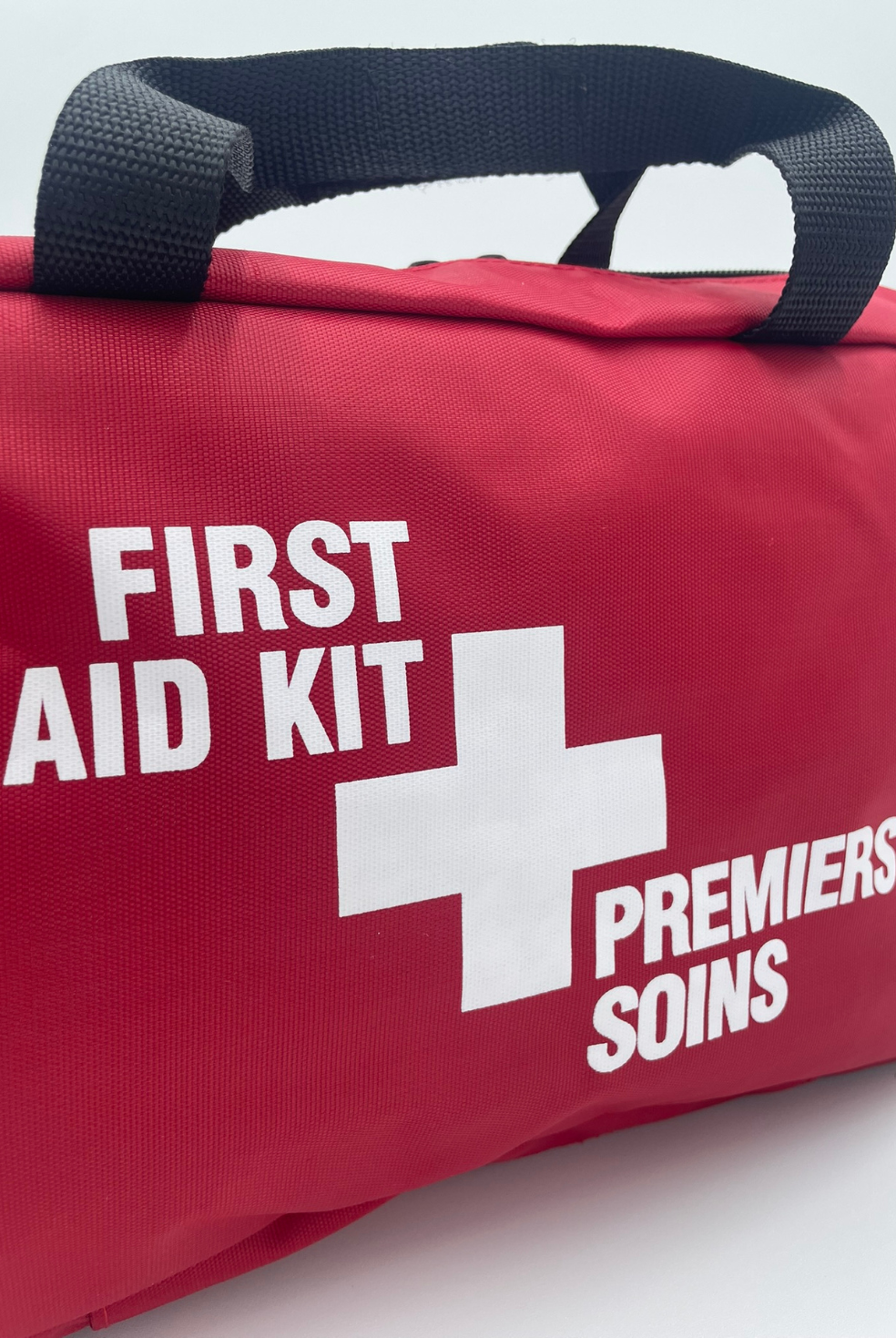
- First Aid Kits
- All First Aid Kits Products
- Naloxone Kits
- Designed to Comply with CSA First Aid KitAn employer following CSA workplace first aid requirements must provide and keep readily accessible the type, size, and number of first aid kits meeting the requirements set out in “CSA Z1220-17, First Aid Kits for the Workplace”. The type and size of first aid kit required for a workplace is determined by the number of workers per shift, the workplace hazard rating as well as the likelihood of harm. See summary below: Required Kit Lone/Isolated Worker 2-25 Workers/Shift 26-50 Workers/Shift 51-100 Workers/Shift Type 1: Personal 1 N/A N/A N/A Type 2: Basic N/A 1 x Small 2 x Small, or 1 x Medium 4 x Small; or 2 x Medium; or 2 x Small and 1 x Medium; or 1 x Large Type 3: Intermediate N/A 1 x Small 2 x Small; or 1 x Medium 4 x Small; or 2 x Medium; or 2 x Small and 1 x Medium; or 1 x Large Organizations must conduct a workplace first aid risk assessment to determine the level of first aid services and equipment required in a particular workplace. *In Canada, some jurisdictions provide lists/classifications of workplaces that can help identify an organization’s risk level…
- Federal Regulation KitsNot sure what kit you need? For the most current regulations, refer to Canada Labour Code – Part II – PART XVI FIRST AID
- Provincial Regulation Kits
- Custom-Branded Kits
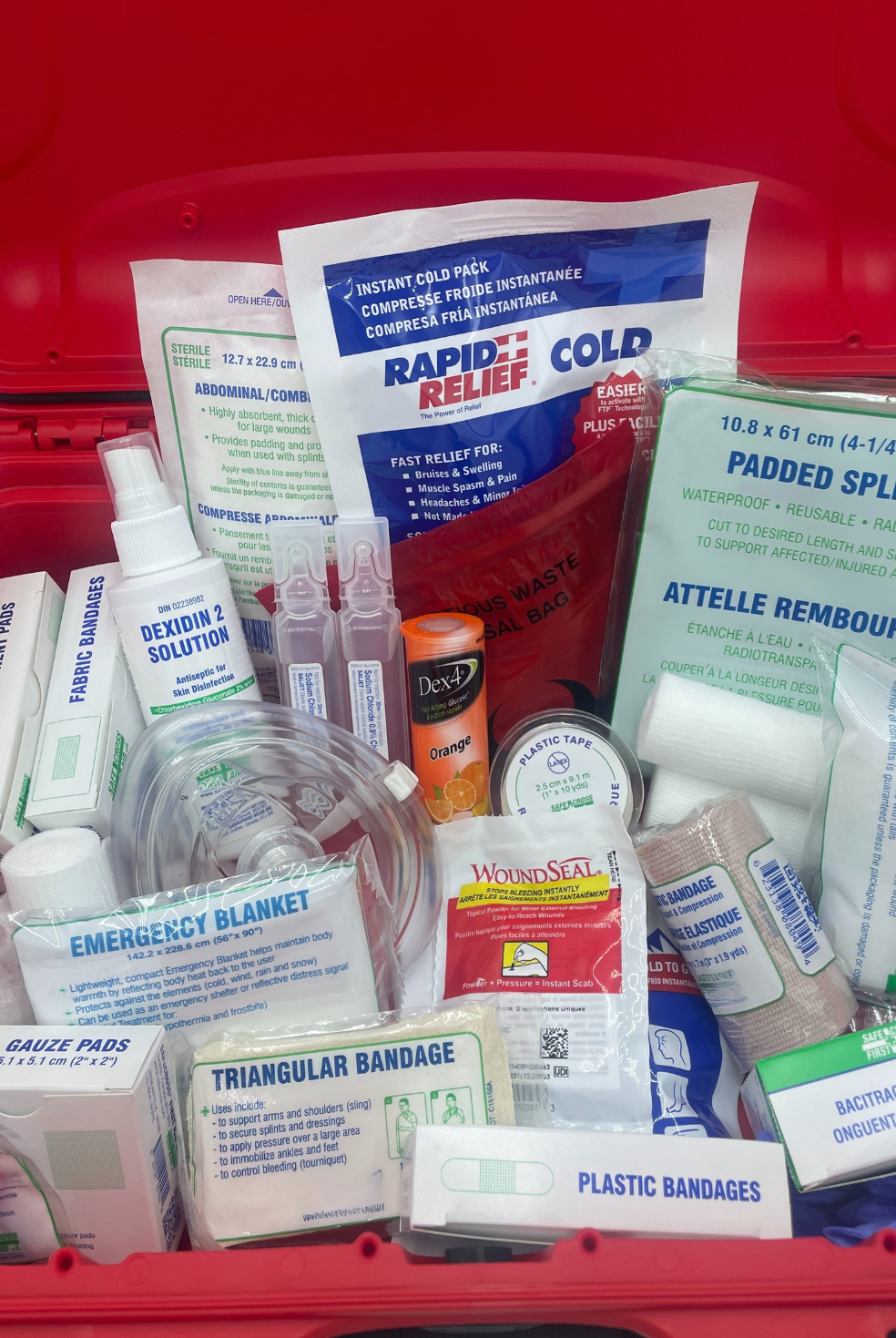
- First Aid Supplies
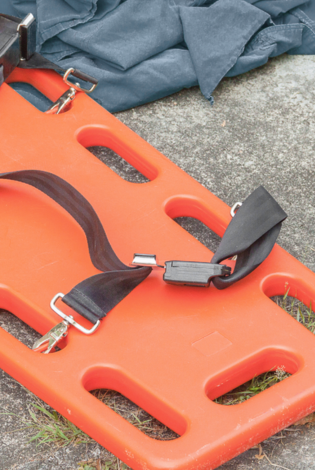
- Splints & Accessories
- Tape & Accessories
- Tourniquets
- Tongue Depressors
- Triangular Bandages
- Supports, Elastics Bandage & Wraps
- WoundSealStop Bleeding Instantly! Called a “medical breakthrough that takes wound care into the next generation just as adhesive bandages did a century ago,” WoundSeal is a topical powder that allows consumers to take control of bleeding cuts and nosebleeds instantly whenever and wherever they happen. WoundSeal FAQs
- Survival Supplies
- Safety Equipment
- First Aid Training
- About Us
- Contact Us
- Request a Quote

Create an account
This will allow you to generate a quote and keep track of your orders
Browse the products
All products have an “Add to Quote” button in addition to the usual “Add to Cart” option.
Add desired items to the quote basket
Select the desired quantity and any other required options. Then click “Add to Quote” for one or more products. These build a list/quote basket much like a shopping cart.
Review the quote basket
You can view the quote basket to confirm the selected products and quantities.
Fill out the quote form
When ready, submit the quote form. Once submitted, you’ll get confirmation that your quote request was received.
Once we have reviewed your quote and made any discount pricing adjustments, we will send an approval notification with a PDF invoice to your inbox.
Explore Products to Begin Building a Quote




Best Practices & Tips
Be as detailed as possible If you have specifications (sizes, materials, delivery date, etc.), include them so we can give you the most accurate quote.
Keep an eye on your email (including spam) after submitting a quote. You will receive a confirmation with next steps.